
Are you aiming to make your first move on the Shopify platform but don’t know where to start? Then, creating a Shopify developer account is the first and foremost step you need to prioritize. For those struggling with this step, this article is for you!
Do not skip and keep scrolling down because we will provide you with an ultimate guide on creating a Shopify developer account.
What is a Shopify developer account?
A Shopify developer account is a type of account provided by Shopify, a popular e-commerce platform, to individuals or organizations that want to build and develop apps, themes, or integrations for the Shopify ecosystem.

This account gives developers access to the Shopify platform and its various tools and resources to create custom solutions and extensions that can enhance the functionality and appearance of Shopify online stores.
To create a Shopify developer account, you typically need to sign up as a Shopify Partner. Once you have your developer account, you can start building and testing apps or themes, and when you’re ready, you can submit them for review and publication on the Shopify App Store or Theme Store.
What can you do with a Shopify developer account?
With a Shopify developer account, you can perform various tasks and access resources essential for building, testing, and distributing apps, themes, or integrations for the Shopify platform. Here are some of the things you can do with a Shopify developer account:
- Create Custom Apps: You can build custom applications (apps) that extend Shopify stores’ functionalities. These apps can automate tasks, add new features, or integrate with other services.
- Design Custom Themes: If you’re interested in front-end development, you can create custom themes to change the appearance and layout of Shopify stores. These themes can be sold or used by merchants to personalize their online stores.
- Access Shopify API: Developers with a Shopify developer account can access Shopify’s robust API. You can use this API to interact with Shopify store data, including products, orders, customers, and more. This is crucial for building apps or integrations that require data synchronization.
- Use Development Tools: Shopify
By considering these factors when creating a Shopify developer account, you can set yourself up for success and develop valuable solutions for Shopify merchants while adhering to Shopify’s policies and best practices.
11 Steps to set up a Shopify developer account
Setting up a Shopify developer account involves several steps to ensure you have the necessary access and tools to develop apps, themes, or integrations for the Shopify platform. Here’s a step-by-step guide to help you get started:
Step 1: Visit the Shopify partner program website
Go to the official Shopify website by typing “https://www.shopify.com/” into your web browser’s address bar.

Step 2: Start your free trial
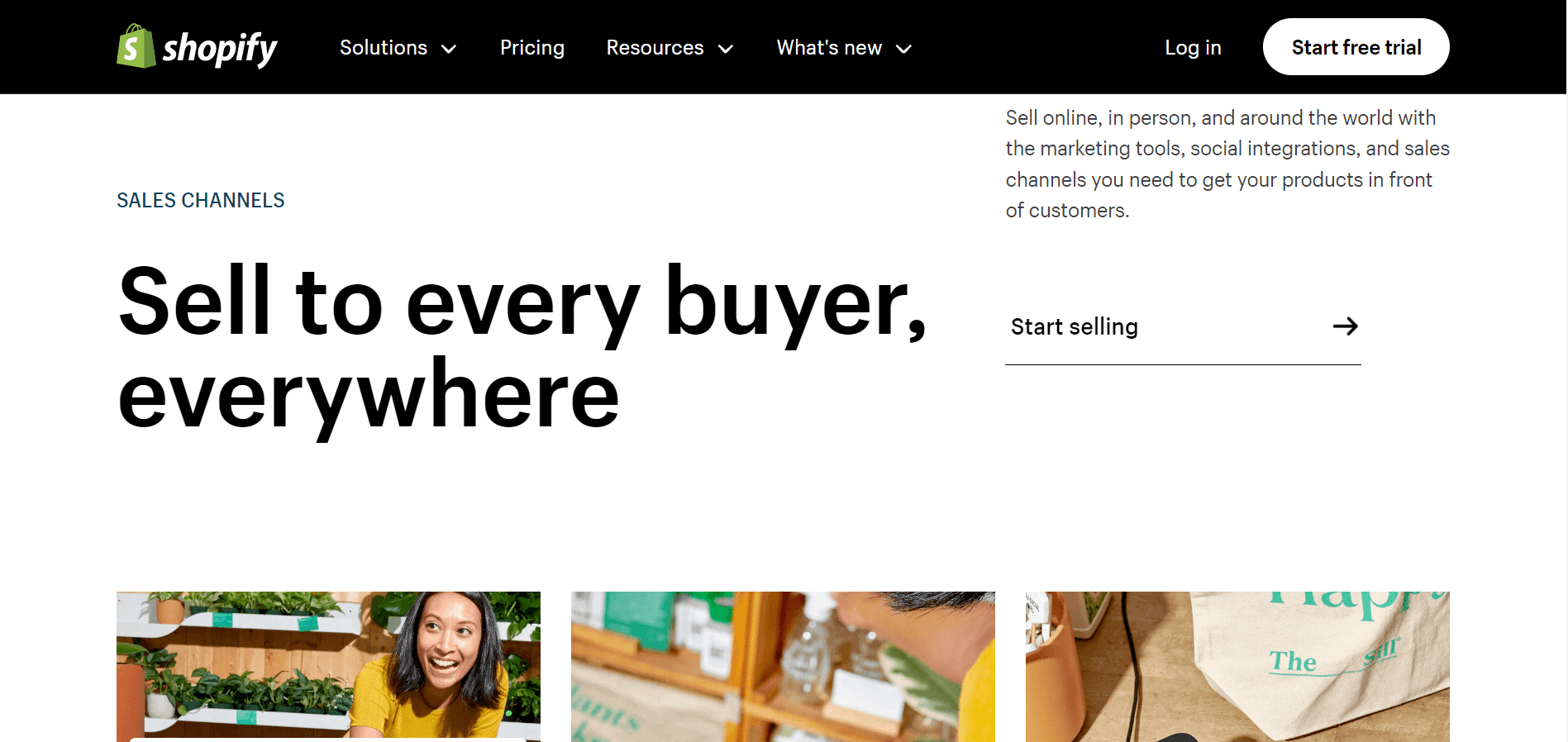
On the Shopify homepage, click the “Start Free Trial” button. This will allow you to create a Shopify store and access the developer features.
Step 3: Sign up for Shopify
Fill out the sign-up form with the following information:
- Email Address: Provide a valid email address that you have access to.
- Password: Choose a strong password for your Shopify account.
- Store Name: Create a unique name for your Shopify store.
After filling in these details, hit the “Next” button.
Step 4: Enter your business information
You will be prompted to provide more information about your business:
- First Name and Last Name: Enter your full name.
- Business Address: Input your business address, including city, state, and postal code.
- Phone Number: Provide a valid phone number.
Click “Enter My Store” to continue.
Step 5: Customize your store
You’ll be directed to your Shopify admin dashboard. At this point, you can customize your store, add products, and set up your store settings. If your primary goal is development, you can skip this step for now.
Step 6: Enable the developer preview
To access developer features, you need to enable the developer preview in your Shopify admin:
- Log in to your Shopify admin dashboard.
- Click on “Apps” in the left-hand menu.
- Scroll down to the bottom of the page and click “Manage private apps” under the “Developers” section.
- Click on “Enable developer preview” at the top of the page.
- Confirm that you want to enable the developer preview.
Step 7: Access the Shopify Developer Dashboard
Once you’ve enabled the developer preview, you’ll gain access to the Shopify Developer Dashboard, which provides various tools and resources for developers.
Step 8: Join the Shopify partner program (optional)
If you plan to build apps, themes, or provide services related to Shopify, consider joining the Shopify Partner Program for additional benefits:

- Visit the Shopify Partner Program page at https://www.shopify.com/partners.
- Click on “Join now” or “Become a Partner.”
- Complete the signup process, providing information about your role and experience.
Step 9: Start developing
With your developer account and tools in place, you can begin building apps, themes, or customizations for Shopify stores. Refer to the Shopify developer documentation for guidance and resources.
Step 10: Test your solutions
Before launching any development work, thoroughly test your solutions to ensure they function correctly and meet Shopify’s requirements.
Step 11: Launch and publish
If you’re developing an app, submit it to the Shopify App Store for approval and public release.
Following these steps, you’ll have successfully created a Shopify developer account and can start building and customizing solutions for the Shopify platform. Remember that specific details and features may evolve, so always refer to the latest Shopify documentation for the most up-to-date information.
The bottom line
In conclusion, creating a Shopify developer account is your gateway to a world of opportunities in e-commerce. Whether you’re an aspiring developer looking to build innovative solutions or a business owner seeking to customize your store, Shopify offers the tools and resources to help you succeed.
Following the 11 steps outlined in this guide, you’ve taken the first stride toward becoming a part of the thriving Shopify developer community. Remember that Shopify continually evolves, and staying up-to-date with the latest developments and resources will be key to your success in this dynamic ecosystem.