Online businesses are growing more than ever as e-commerce has merged seamlessly into our daily lives. Shopify is one of the top platforms that has allowed many small business owners and entrepreneurs to launch and run their online stores. However, the default inclusion of “Shopify” in their store’s URL can be a limiting factor for individuals who want a more customized and expert online presence. If you’re wondering how to remove Shopify from your URL, you’re not alone.
Imagine having a unique and memorable web address that represents your brand without external affiliations. Whether you’re a seasoned e-commerce veteran or just getting started, the desire to remove “Shopify” from your URL is a common aspiration.
Fortunately, you’ve come to the ideal location. This thorough tutorial aims to assist you in removing the “Shopify” tag from your website and providing you with the autonomy to shape your online identity exactly the way you envision it.
Why do you need to remove Shopify from the URL?
When you first set up a store with Shopify, your web address will look something like yourstore.myshopify.com. While this is a quick and easy way to get started, it can make your store seem less professional and harder to remember.

There are several compelling reasons why someone might want to remove “Shopify” from their store’s URL:
- Branding & Professionalism: A custom domain without the “Shopify” subdomain creates a more professional and distinct brand identity and builds trust.
- Credibility: Customers may hesitate to trust stores with “Shopify” in the URL. Removing it boosts credibility.
- Improved SEO: Custom domains often perform better in search engine rankings.
- Memorability: A shorter, more memorable domain name is easier for customers to recall.
- Marketing & Advertising: Custom domains look cleaner and more appealing in ads and marketing materials.
- Brand Control: You gain full control over your web address and branding consistency.
- International Appeal: A neutral custom domain is more attractive for global expansion.
- Ownership: Your URL remains unchanged even if you migrate to another e-commerce platform.
In summary, removing “Shopify” from your URL enhances credibility, visibility, and brand identity.
A step-by-step guide to remove Shopify from URL
Step 1. Make plans for the change
Before starting, evaluate how the change aligns with your branding strategy. Back up your store data and notify stakeholders to avoid disruptions.
Step 2. Choose a custom domain name
Select a domain that reflects your brand, is easy to remember, and avoids special characters or hyphens.
Step 3. Get your custom domain
Purchase your domain via Shopify’s domain service or a third-party registrar. Remember to budget for annual renewal fees.
Step 4. Protect your Shopify store
Back up your products, customer data, and important settings to avoid data loss.
Step 5. Add your own domain to Shopify
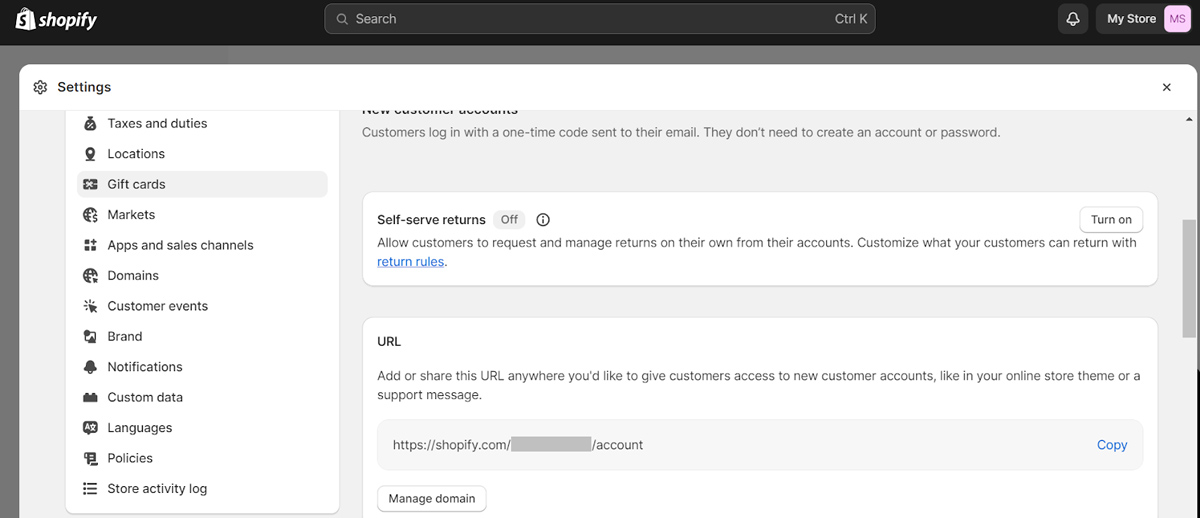
Log in to Shopify Admin → Settings → Domains.


Step 6. Add a custom domain

Choose Connect existing domain or Buy new domain. Buying through Shopify simplifies DNS configuration.
You might be interested in:
How To Connect Domain To Shopify?
Step 7. Establish DNS settings
If using a third-party registrar, configure A and CNAME records to point to Shopify’s servers. DNS propagation may take time.
Step 8. Check your custom domain connection
Verify the connection in Shopify’s domain settings.

Step 9. Take Shopify out of your URL
Set your custom domain as the primary domain in Shopify Admin. This removes “Shopify” from your URL.
Step 10. Switch to your new Shopify URL
Test your new domain on different browsers and devices to ensure everything works smoothly.
Step 11. Update internal links for your store
Update internal links in product pages, blogs, and content to reflect your new domain. Inform customers and update marketing materials accordingly.
If you encounter any issues, you can contact Mageplaza for support.
When should you remove Shopify from the URL?
Consider removing “Shopify” when:
- Establishing Brand Identity: Early-stage businesses benefit from a professional appearance.
- Business Growth: Custom domains scale better as your store grows.
- Marketing & Promotion: Easier to promote in campaigns.
- Rebranding: Ideal time to update your domain.
- International Expansion: More neutral and globally appealing.
- Long-Term Planning: Avoid rebranding complications later.
- Budget Considerations: Account for domain costs.
- Technical Proficiency: Ensure you have technical support if needed.
Does removing Shopify from the URL have any effects on the Shopify store?
Removing “Shopify” from your URL has both benefits and challenges.
Positive effects
- Branding & Professionalism
- Improved SEO
- Brand Control
- Marketing & Advertising
- Memorability
Negative effects
- Technical Complexity
- Temporary SEO Impact
- Potential Downtime
- Costs
- Redirects & Backlinks
- Rebranding Effort
In summary, removing “Shopify” from your URL is beneficial for branding and SEO but requires careful planning.
Conclusion
By removing Shopify from your URL, you’ve taken full control of your brand’s digital identity.
Maintain SEO best practices, update content regularly, and ensure all internal links point to your new domain. This transformation reflects your commitment to long-term growth and delivering an exceptional online shopping experience.
Embrace the opportunities ahead as your store evolves into a strong, independent brand.